

This MPC 500 tutorial will quickly teach you how to chop drum loops – by doing this you can re-arrange loops, change the groove and remove individual hits to make your own kits. Adapted from my hands-on MPC 500 tutorial book, ‘Beat Making on the MPC 500‘.
Chopping Breaks on an MPC 500
Why do we want to chop a drum break? Well, normally it’s because we wish to extract the individual drum sounds or large ‘chops’ from within the break to allow us to rearrange the break while retaining the original atmosphere and production vibe – it can also let us ‘fit’ the break into an existing sequence or completely change the groove or note order of the break. We may also wish to perform special tricks to the break, or even selectively remove nasty pops and scratches. There are lots of other reasons for chopping up breaks – for a start, it’s a lot of fun and it can be a challenge to transform something quite familiar into something that sounds completely different.
So how do we go about chopping a break? Looking back at chapter 11 of the book, we came across the ‘EXTRACT’ function in the Sample Edit screen – this function allows us to select a section of a break and turn just this section into a completely new sample. So in theory, you could keep selecting different sections within your break and creating new samples from it.
Load up the drum beat ‘SIMPLE’ from the tutorial files and assign it to any pad. This beat has been trimmed and looped already for you using the techniques covered in previous tutorials. The loop is 4 beats long (1 bar) and is 63.9 BPM. Keep your finger on a pad and listen to the beat looping. It’s a nice beat, but it won’t sound that good constantly looped in its current state because that roll at the end will become very annoying if it’s continually repeating every bar.
Extracting Your Chops
Before we do anything, let’s create a blank program as we’re going to assign our chops to this program. Go to PROGRAM (MODE and pad 6) and on the top line spin the data wheel to ‘New program’. Hit DO IT. Now jog wheel to ‘Rename program’ and give this program the name ‘SIMPLE’. To do this, cursor down to the second line, hold down SHIFT (to give upper case letters) and enter the letters using the pads (using the process described in earlier chapters of the book). Hit DO IT.
Right, let’s slice our beat into individual beats. As mentioned above, this is a 4 bar beat – play the loop again and count 1,2,3,4 to hear the beats. Each bar contains multiple drum hits – for example, beat 1 ends just before the first main snare hit and contains kicks and hats. So to start off, let’s create a chopped region of this first beat. Go to TRIM (MODE and pad 5):
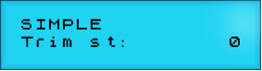
We have already covered the process of extraction in chapter 11, but we’ll just quickly go through it again in this example. First preview our drum loop, so just press and hold any of the pads on the bottom row. Now, to extract the first bar, we first need to adjust the ‘Trim’ start and end points. Obviously as this is the first bar, the start point is the start of the entire loop (0), so this is already set for us.
To set the end point, highlight ‘Trim st’ and turn the data wheel to the right. You should see an end point has been set to 165382. This is the current end point of the entire loop. Now we know that the first bar ends just before the first main snare hit comes in, so we need to adjust the end point to occur just before this hit.
Cursor to the right so that the ‘6’ is selected – this means our data wheel movements will change the end point in ‘hundreds of thousands’ of sample points at a time. Start spinning the data wheel to the left and reduce the end point to read approximately 55382. Now press and hold any bottom row pad (or pad 11, the ‘PLAY TO’ function). You should hear that currently our snare is audible, so we have not yet sliced enough of the end point off.
Continue jogging to the left until it reads 35382. Press and hold your preview pad and you’ll hear that the snare no longer plays at all – we’ve gone back too far. Now spin the data wheel to the right so it reads 45382. This is a bit better – you can hear the snare, but it’s quite short, so we’re getting closer to the true end point.
Now cursor one place to the right to increase the sensitivity of the jog wheel movements. Change the end point to 41882 and preview. Now there is just a very short ‘click’ of the snare audible. Cursor to the right again to get maximum sensitivity, and continue to reduce the end point, previewing all the time, until you finally just stop hearing the snare. Once it disappears, start increasing the endpoint again and previewing until the snare comes back again, and back off a point. This is the correct end point for our first chop. I set mine to 41614.
To create a unique sample from this chop, we need to ‘extract’. Highlight ‘End’ and data wheel all the way to the right until it reads ‘Edit: Select’. Highlight ‘Select’ and jog wheel to the right until it reads ‘Extract’:

Hit the flashing DO IT button, and you’ll see the following:

Your MPC has given it a name (SIMPLE2) – you could use this (for each new sample you make it will auto number it, so the next one will be SIMPLE3 etc). But to get a bit more practice naming samples with the pads, I’m going to rename it SIMPLE-1.
To do this, cursor to the top line and over the ‘S’ of SIMPLE, jog wheel one place to the right and then one place left again – this activates the naming function. Now cursor to the ‘2’ and hit pad 10 three times to give the ‘–‘. Now hold down the NUMERIC button and press pad A1 to give us the ‘1’. Hit DO IT (this sets the new name). Now hit pad A1 to assign this sample to pad A1 in our blank SIMPLE program, and hit DO IT. You’ll now be returned to the main trim screen for our new SIMPLE-1 sample.
That’s that for beat 1, so on to beat 2. To create our beat 2 slice, we must return to our original SIMPLE sample – so data wheel back to this. Remember that this sample is currently set to only play the first beat – to preview the entire loop again, press and hold pad 9, PLAY ALL.
Beat 2 fundamentally consists of our snare hit, hats and some minor kicks – it ends just before the main kick comes in at the start of beat 3; at this point there’s also an open hat playing in unison with that kick. So this time we need to set a start point and an end point.
Setting the start point is easy – it’s just the end point from our first slice! So first, remind yourself of that end point by highlighting ‘Trim st’ and jog wheeling to the right; the end point is 41614. Now go back to the start point and enter this number as the start point – just highlight 0, hold down NUMERIC, and use the pads to enter the number, then release NUMERIC.
Now return to the end point and increase it by highlighting the first ‘4’ and jog wheeling to the right. Try 85382 and preview using any pad on the bottom row. You’ll hear that our kick/open hat at the start of bar 3 is just audible, so as we did previously, we need to back off a little and keep previewing until this cannot be heard anymore. I finally settled on 82204.
As before, you are now ready to extract, so follow the procedure described previously and this time call the sample SIMPLE-2 and assign to pad A2. Now follow the entire procedure for our last two slices, remembering that the final chop already has its end point set as the ultimate end of the entire loop. Make sure all your samples are now assigned to the first four pads in your SIMPLE program.
If you like, load up the SIMPLE program file from the tutorial files. This is my version of the chopped up beat (you can use your version if you wish). Play the pads A1 to A4 to hear your cuts/slices. First, let’s recreate our original beat within our sequencer. Go to SEQUENCE and select a blank sequence; on the top row set the BPM to 63.9. As this is a 1 bar loop, we need to set our sequence as 1 bar long, so press the PARAMS button and jog wheel to ‘Sequence length’

If you see the above, your sequence is already one bar long (‘Now=1’). If the ‘Now’ parameter is different, set ‘New=1’ and hit the flashing DO IT button.
Now hit the TIMING CORRECT button set the TC to 1/8; this sets our quantise sensitivity to an eight of a bar.
Hit TRACK, and then PARAMS, then jog to ‘Program assign’ – assign our new SIMPLE program to track A1. Now, remember that we chopped our break into 4 slices and our break was exactly 4 beats long – that means each slice is one beat. So let’s place each one of these slices exactly on a beat.
Go to SEQUENCE, then STEP EDIT (mode and pad 11) – on the top line you have 3 sets of numbers, 001.01.00, which we saw in previous tutorials represents the Bar (001), beat (01) and tick (00) position. So
- beat 1 is represented by 001.01.00.
- Beat 2 is represented by 001.02.00.
- Beat 3 is 001.03.00
- beat 4 is 001.04.00.
So to place our zones ‘on the beat’ simply go into step edit and add our slices at these 4 points.
Make sure you are at the start of your sequence (001.01.00). Enter your first slice here press OVERDUB and pad A1 – make sure you are also on FULL LEVEL to ensure full velocity of all entered events.
Now navigate to 001.02.00. The easiest way to do this is to use the STEP cursors above the OVERDUB button – as your timing is set to 1/8, this involves press the right STEP key four times. Enter your second slice here (pad A2). Enter pad A3 at 001.03.00 and pad A4 at 001.04.00.
Press play – doesn’t sound quite right, does it? Some of the beats seem to come in a little too late…
Fixing The Timing
As we shall examine in greater details later in the ‘Beat Making on the MPC 500’ book, when dealing with a ‘live’ drum performance (remember, this break is simply sampled from an old record), it is rare that the original drummer played his drums exactly ‘on’ the beat – real drummers do not obey quantise points! In fact to create unique feel to his drums, he may play them slightly ‘ahead’ or ‘behind’ time.
Load up BEAT2.MID. This time, I’ve placed the chops 2, 3 and 4 slightly behind the beat by using step edit to place the notes in their new position, using the techniques discussed in chapter 15. For example, rather than place the second chop exactly on the second bar (001.02.00), I placed it one tick behind (001.01.95). It sounds a lot better. Arranging the chops this way has kept the original feel of the beat – but let’s look at a way of changing the original feel, and making a whole new beat.
If you listen to our sliced beat, especially on headphones, you’ll hear that the end ‘chop’ has a little gap before it loops back to the beginning of the beat. To fix this, we need to stretch out this final sample to make it fill the gap. A quick way to do this is to tune down pad A4 by a small amount – this will slow the sample down and hence make it longer.
So, go to PROGRAM (mode and pad 6), press pad A4 and lower the tuning very slightly (jog wheel to ‘Sample tune’ on the top line, select +00.00 and hit pad A4. I took it down to -00.30. Now press PLAY – this certainly improves the little gap at the end, although you can just hear that this slice actually drops in pitch a little, which isn’t ideal. As a further improvement though, on the top line in PROGRAM, jog wheel to ‘Decay’ and change this from the default ‘5’ to ‘0’ as the current (default) setting of 5 will also take a little off the end of the sample.
Another method is to time stretch this last chop. Go to TRIM (MODE & pad 5) and select SIMPLE-4. Select ‘Edit’ on the bottom line and jog wheel to ‘Stretch’ and DO IT. In ‘Orig’ set a BPM of 63.9 (this is the BPM of our original break), for ‘New’, we need to lower its BPM, so set this to, say, 60BPM. ‘Select a preset of PERC A (i.e. percussion, quality A). Press DO IT – you may wish to rename the sample (I call it SIMPLE-9 in the tutorial files).
Now go back to pad A4, set the ‘Tune’ back to 0, and assign our new SIMPLE-9 here. Press PLAY. The gap has certainly gone, but now it sounds like the beginning of the beat comes in just too quickly, which suggests our new stretched slice is too slow. So return to TRIM and SIMPLE-4 (not our new SIMPLE-9!) and re-stretch it, this time try 61.5BPM and call it SIMPLE-10. Now put our new SIMPLE-10 sample on pad 4 and press PLAY. This is much better.
Chopping it further
Currently our chops are a full beat each. You can of course continue chopping these existing chops even further, in fact, why not chop then right down to the individual drum hits? If we do this, we are no longer limited to just rearranging the structure of the original beat, we can create a 100% original beat as we can treat the chops just like any drum kit.
The method of slicing your chops down to individual hits is identical to the method we used to create the single bar long chops. You can either ‘extract’ directly from the original SIMPLE loop, or you can take our existing one-beat chops and further slice them instead. Just keep previewing and changing the end point until you hear a clean, click free extraction. I would advise that you initially forget about the drum roll at the end and just stick to the obvious single hits (this can be cut down further later, although as the hits will be very short and obviously cut off, they may not be very usable).
If you open up the SIMPLE folder, you’ll find a project file ‘SIMPLE’ – load this up to see and hear the final program that I made from this chopped up break. The first thing you may notice is that I’ve renamed all the samples. I’ll talk about this naming convention in later tutorials when I introduce pure and impure kit templates, but for the moment, you can probably work out that ‘KH1’ refers to a ‘kick with a hat laid over it’ while K1 simple refers to a ‘pure kick’ sound.
Go to sequence 1 (BEAT4) to hear a sequence I created using this new program. It sounds very different to the original loop – a different tempo and a completely different groove. Straight away you can hear the advantage of chopping your break into individual hits – you are no longer limited by the original performance, but get to keep the sound and production in your new beat. You can change the tempo of your beat quite easily just by adjusting the sequence tempo in the main screen using the jog wheel.
One downside to this method is that you can’t really slow your beat down by too much, as you will eventually get gaps in the audio. Any slower than the tempo of the original loop, as you’ll start to hear the gaps between the chops. But you can certainly speed it up no problem, as I did in BEAT4 (63.9 to 86.5BPM). Just remember that if you use the roll sample on pad A12, you must time stretch this to make it shorter otherwise it will not fit properly.
Using only your best samples
If you look at BEAT4, you’ll see that I only used one hi hat sample even though there were two that we salvaged. This was because the second hi hat sample (CH2 on pad A7) doesn’t sound so great in my opinion – it has a bit of bass reverberation running through it and it also sounds quite ‘clicky’. But that’s the beauty of this method – you can pick and choose the best samples and ignore the bad ones.
Of course, it’s nice to have several variations of the same sample to make our beat a little more interesting, but we’ll look at advanced drum kit programming in more detail within the Drum Manipulation section of the book where we will also look at ways in which we can change these drum sounds, beef them up, recreate timbre changes and build our own drum kits.
Beat Making on the MPC 500
I hope you’ve enjoyed this MPC 500 tutorial from ‘Beat Making on the MPC500’ – inside the full book are 44 MPC 500 tutorials that quickly teach you everything you need to know about making beats on the MPC500 using easy-to-follow, creative beat making examples along the way. Topics covered include beginner’s set up, sample editing, advanced sequencing, drum kit building, multisampling, song arrangement – you name, its in there! And all project files are included to ensure you can recreate every tutorial within your MPC 500 while you read.
Find out more about ‘Beat Making on the MPC500’.

Latest Posts
Pro Studio Kit 3.5 - Now With MPC Sample & MPCe Pad Support
Electric Bass 3 - Now With MPC Sample & MPC3 Support
MPC Bible 3, Revision 6 - MPC Oscillators, MPC 3.9, MPC One G2 + MPC Key 37 G2

Downbeat Kit 3 - Acoustic Drum Kit Expansion For MPC3


Leave a Reply